Connect Batouxiang AI Ads Assistant in 3 Steps
About 10 minutes end to end. Follow the screenshots step by step and you're done.
① Register
② Add & authorize your store
③ Manage listings
④ Connect an agent (optional)
Note: the product console interface is currently in Chinese; the screenshots below show the Chinese UI, with each button labelled in English here.
① Register an account⏱ 1 min
Click an image to enlarge
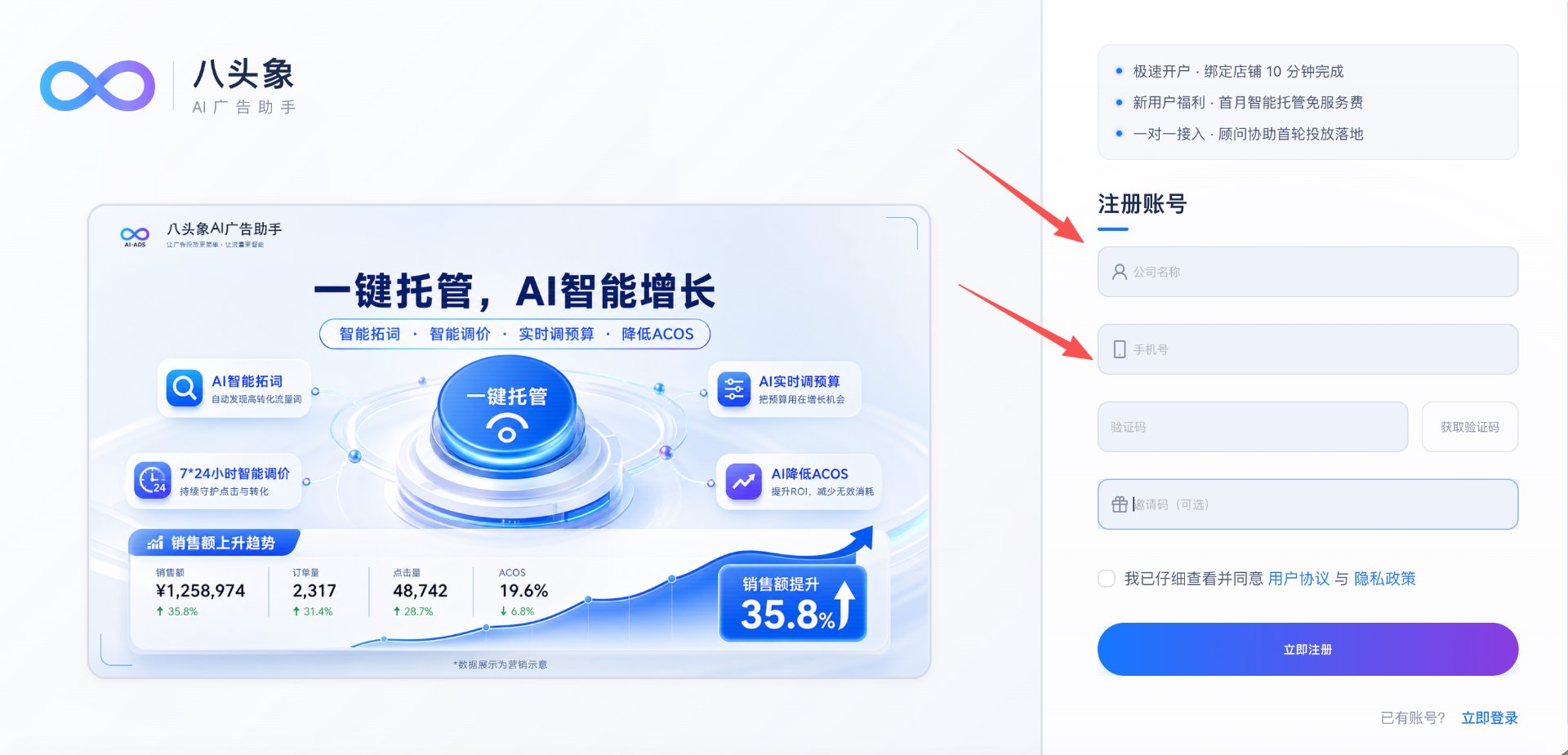
Follow the screenshot: go to batouxiang.com/register → click "立即注册" (Sign Up) → enter your company name and phone number → request and enter the verification code (invite code optional) → accept the terms → click "立即注册".
⚠️ Note: the first month of AI management is free for new users — connect your store soon after registering.
② Add your store + authorize it⏱ 5 min (the key step)
②-1 Add the store
Click an image to enlarge
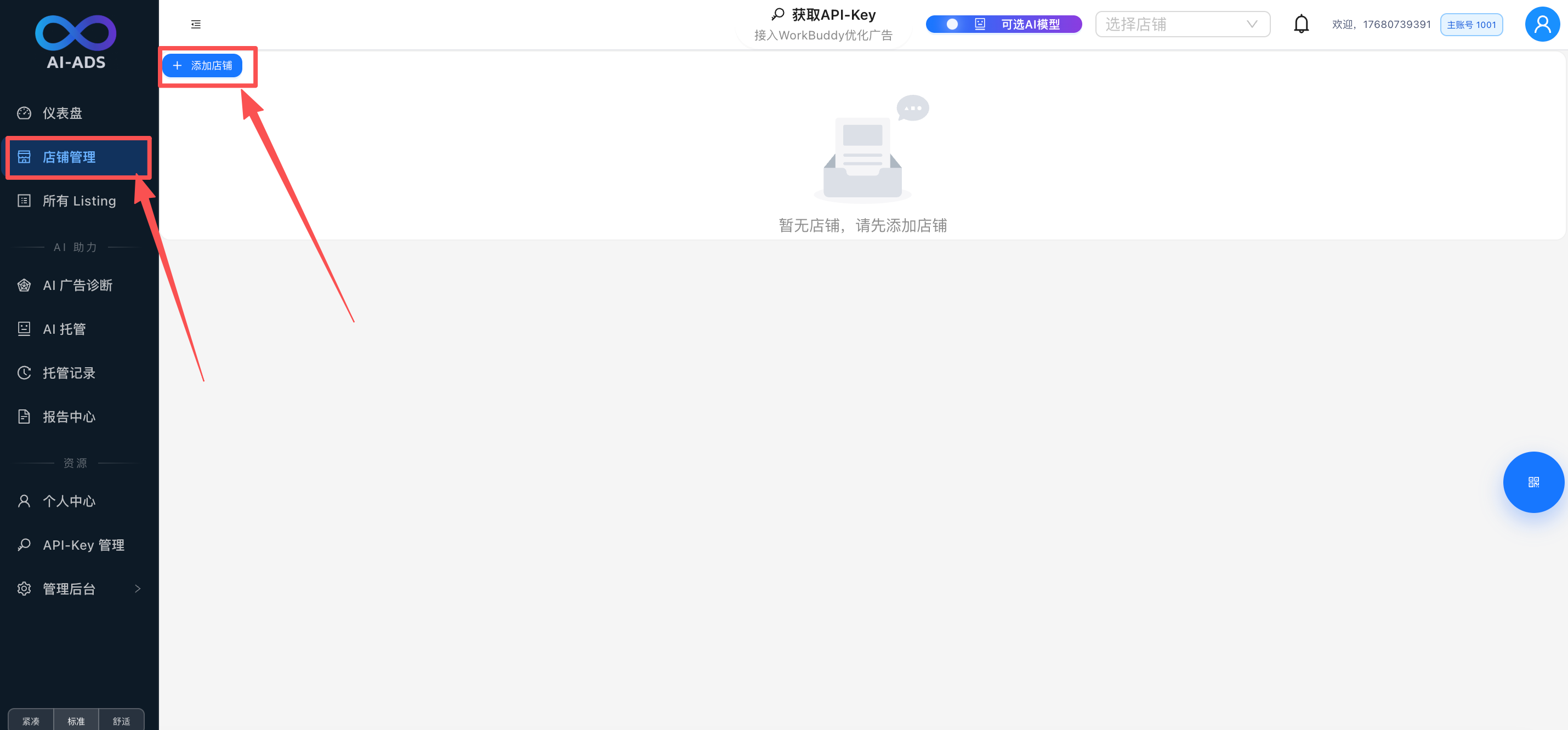
Follow the screenshot: after signing in, click "店铺管理" (Store Management) in the left menu → click "+ 添加店铺" (Add Store) at the top right → enter a store name → save.
②-2 Authorize the store (two steps: SP-API first, then Ads API)
Click an image to enlarge
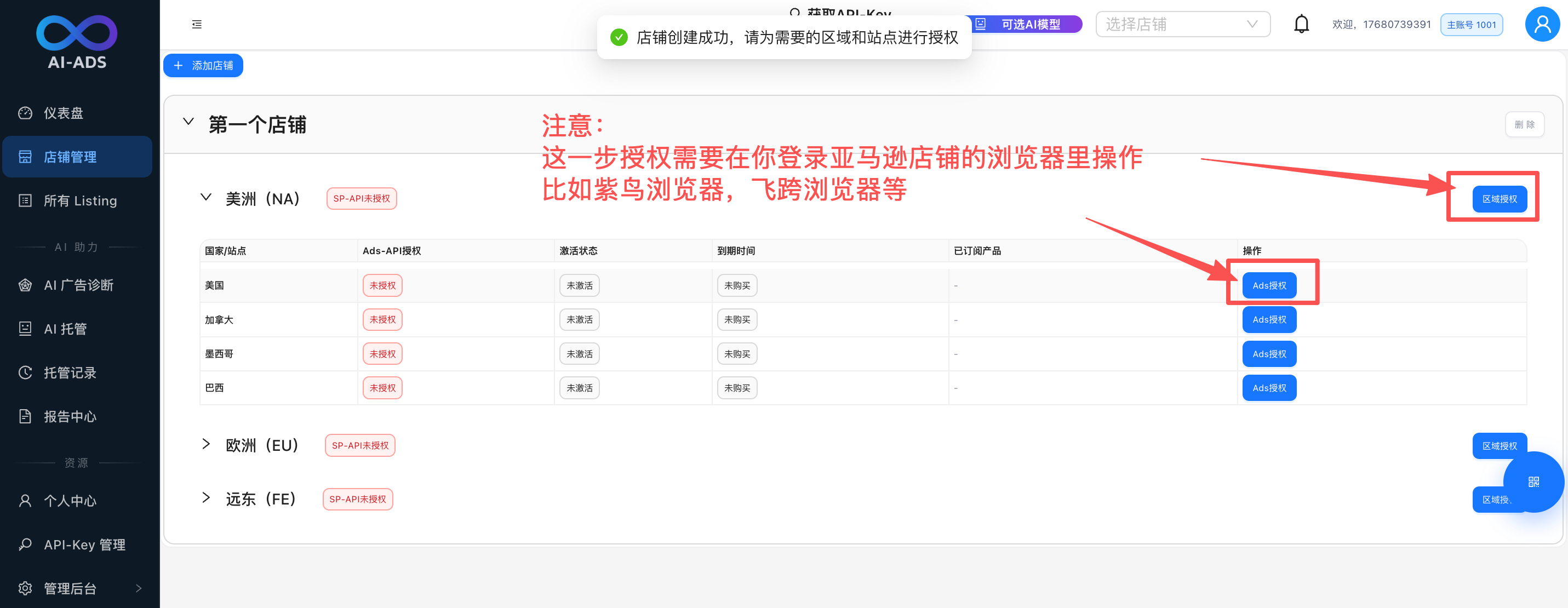
Follow the screenshot: expand the region (Americas / Europe / Far East) → Step 1: click "授权" (Authorize) on the region row (SP-API authorization) → Step 2: click "ADS授权" (ADS Authorize) on each marketplace row (Ads API authorization) → confirm on the Amazon page that opens.
⚠️ Note:
- Authorize in the browser you normally use to run the store (Ziniao / Felten / Zhanfu etc. are just examples)
- After authorization, data collection takes 6–12 hours; listing management can only start once collection completes
- One marketplace can only be authorized to one store
③ Put listings under AI management⏱ 2 min (after data collection)
③-1 Pick products and open the management dialog
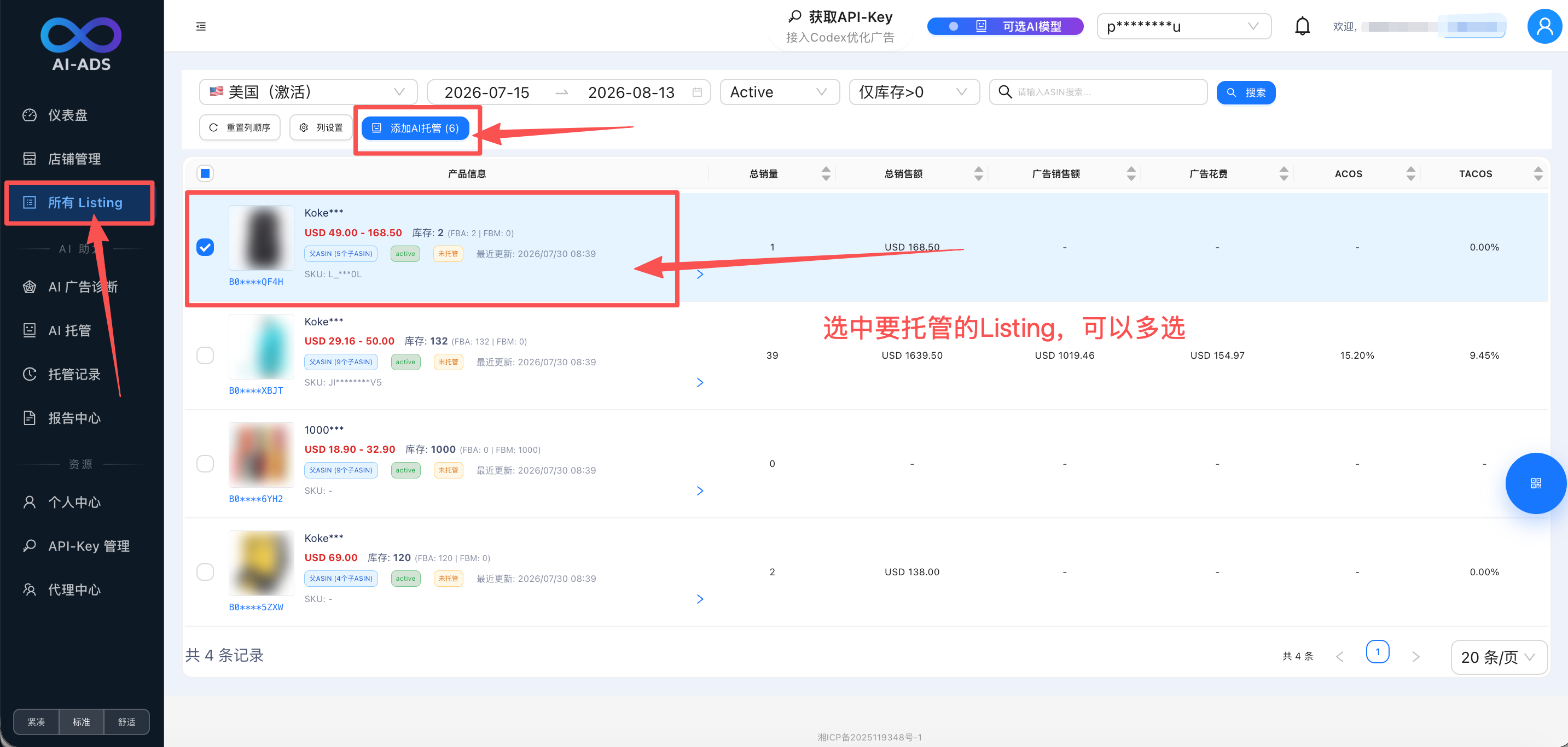
Click an image to enlarge
Follow the screenshot: open "所有 Listing" (All Listings) in the left menu → filter by marketplace/status (recommend
Active with "仅缓存>0" checked) → tick the products to manage (multi-select supported) → click "添加 AI 托管" (Add AI Management).③-2 Choose a model and submit
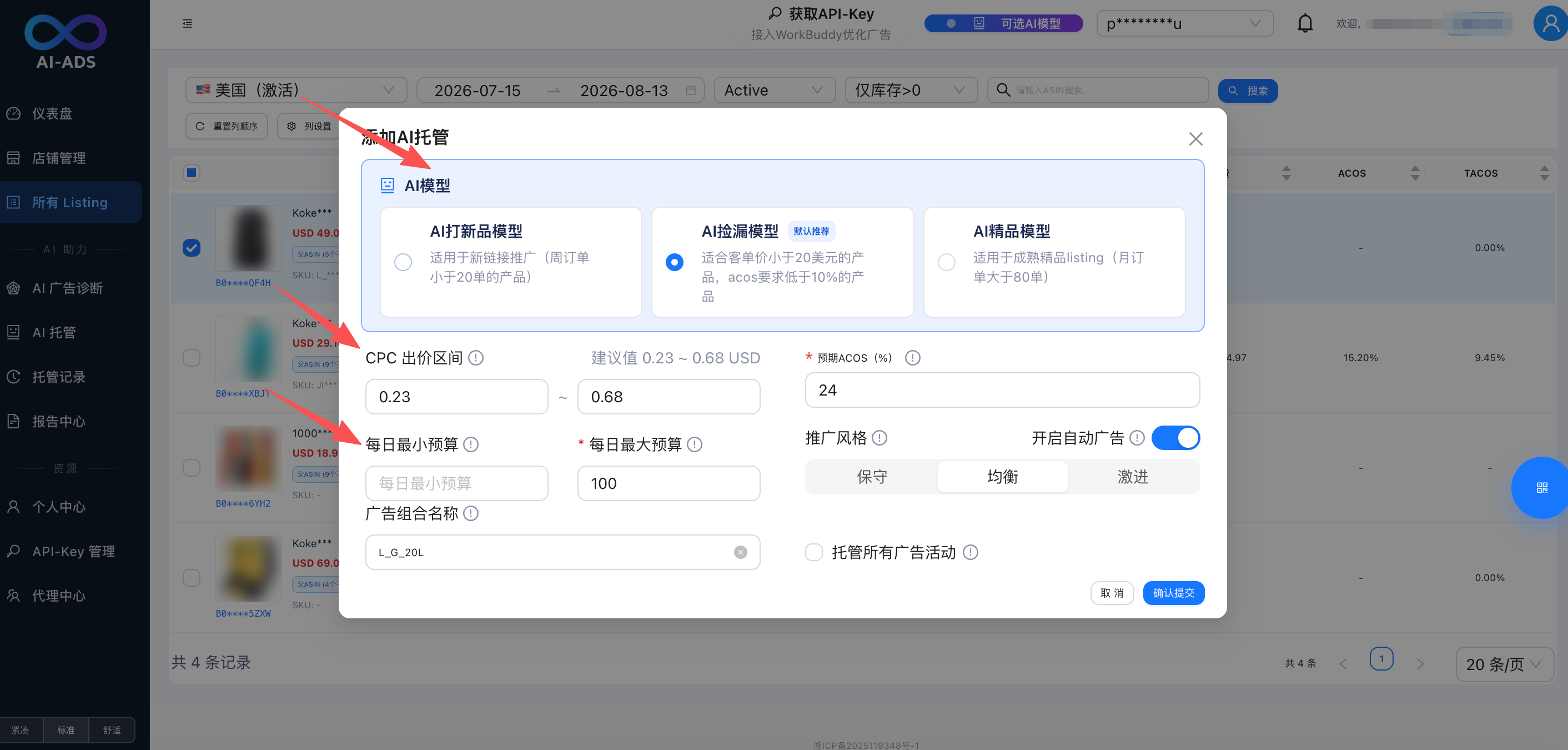
Click an image to enlarge
Follow the screenshot: in the dialog, choose the model for this listing → enter the CPC bid range, target ACOS, and daily min/max budget → click "确认提交" (Confirm & Submit).
Which of the three AI models?
| Model | Best for |
|---|---|
| New Product Launch | Promoting new listings (fewer than 20 orders per week) |
| Bargain Hunter (default recommendation) | Products priced under USD 20 with an ACOS target under 10% |
| Mature Product | Established listings (more than 80 orders per month) |
⚠️ Note: the first managed run has a learning period of about 24 hours; don't manually adjust ads on the same listing while it is under AI management.
④ Connect an agent — Codex / WorkBuddy / Kimi Work⏱ 2 min (optional)
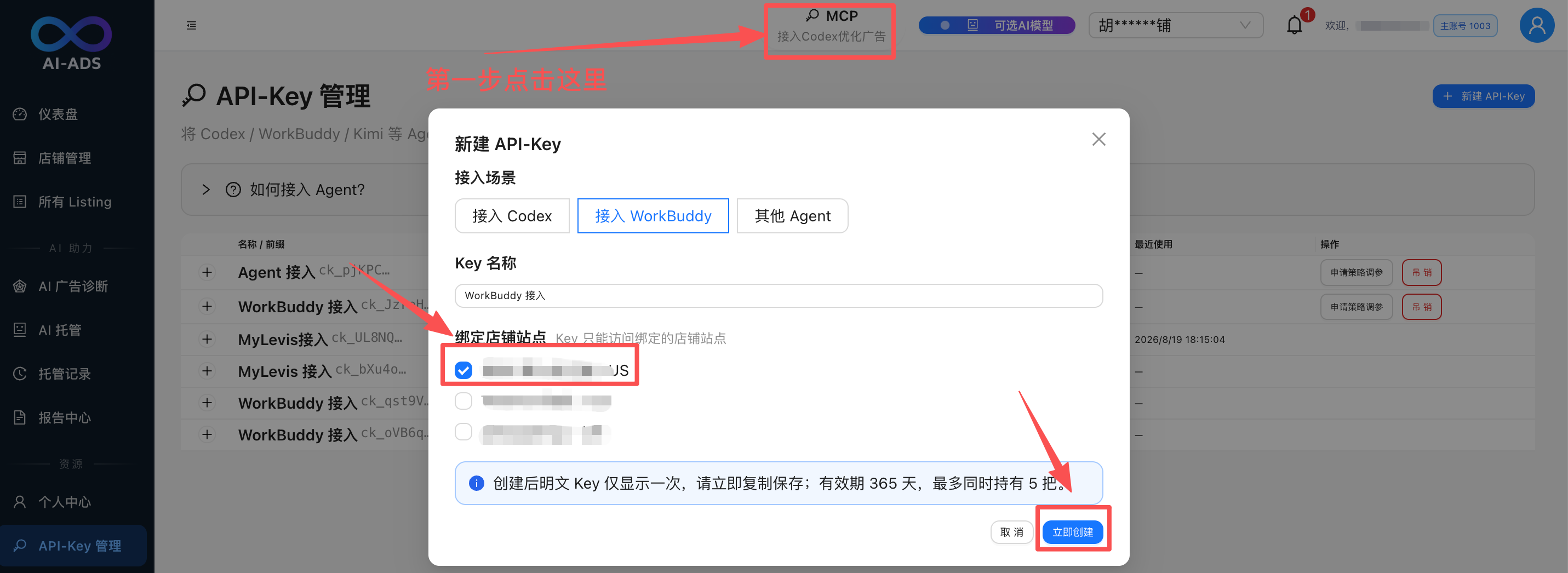
Click an image to enlarge
Follow the screenshot: click "MCP · 接入Codex优化广告" in the top navigation (or "API-Key 管理" in the left menu → "+ 新建 API-Key" at the top right) → choose the scenario (Codex / WorkBuddy / other agent) → enter a key name → tick the store marketplaces to bind (a key can only access the marketplaces bound to it) → click "立即创建" (Create Now) → copy the plaintext key and paste it into your agent's connection settings.
⚠️ Note:
- The plaintext key is shown only once right after creation — copy and store it immediately
- Keys are valid for 365 days, with up to 5 held at once; revoke any key in "API-Key 管理" when no longer needed
- Create a separate key per agent and bind only the marketplaces it needs, to keep permissions minimal
📊 Review AI results
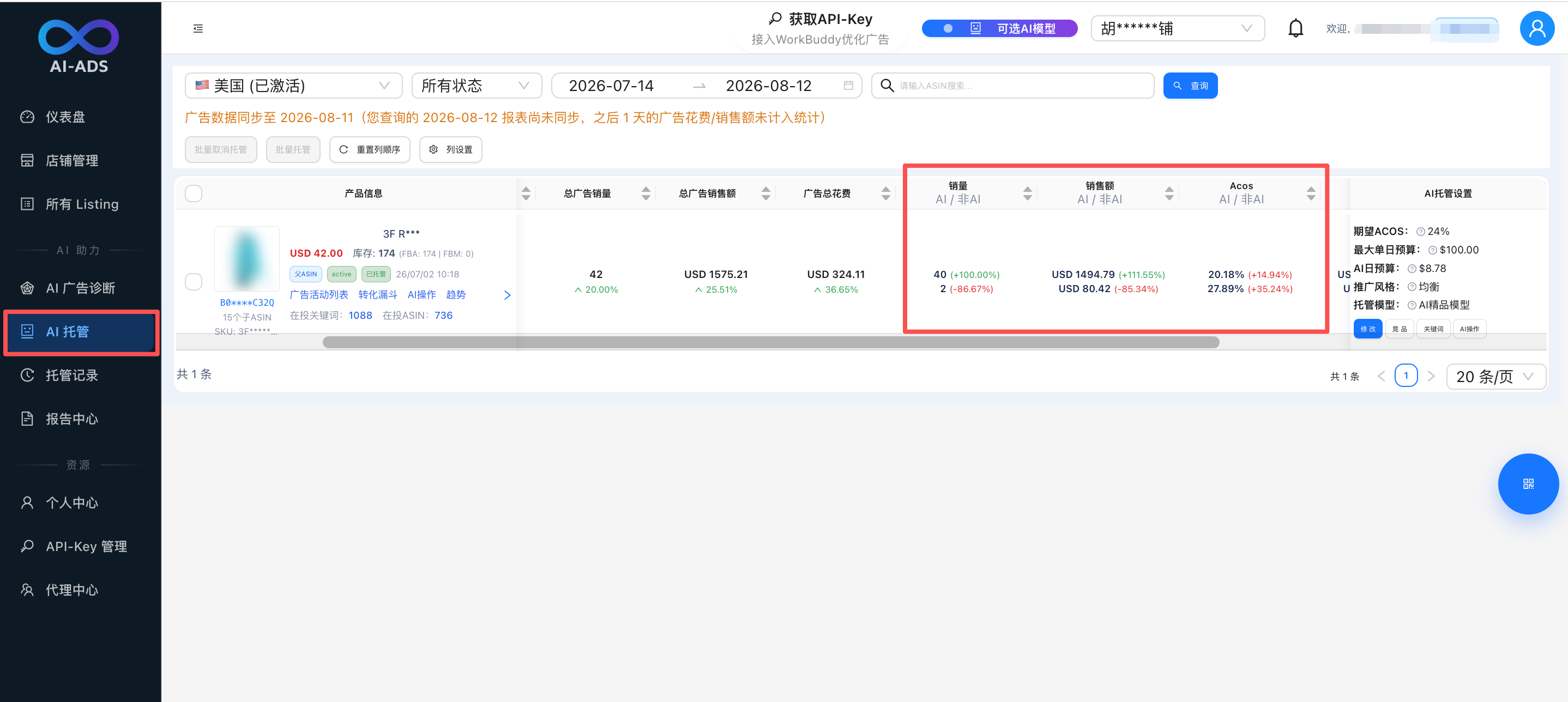
Click an image to enlarge
How to check: open the "AI 托管" (AI Management) page in the left menu to see AI vs non-AI orders, sales and ACOS for every managed listing; the "AI 托管设置" (AI Management Settings) panel on the right adjusts target ACOS, daily budget, promotion style and the management model.
| Cadence | What to do |
|---|---|
| Daily | Check AI vs non-AI performance on the AI Management page |
| Weekly | Read the weekly report in the Report Center; handle alerts in AI Ads Diagnostics |
| Monthly | Decide whether to put more listings under AI management |
Top questions
| Question | Answer |
|---|---|
| Not receiving the verification code? | Check the phone number and retry after 60 seconds; contact support if it still doesn't arrive |
| Authorization keeps failing? | Make sure the browser is logged in to the corresponding Amazon store; authorize with the primary account |
| The Manage button won't open? | Data collection takes 6–12 hours after authorization before management can start |
| The listing list is empty? | Wait 10–15 minutes to sync; check that authorization succeeded and filters aren't too strict |
| How soon will I see results? | Typically an ACOS improvement trend within 3–7 days, stable by day 14 |
| Will the AI overspend? | No. It's bound by budget caps and ACOS thresholds, with bid changes limited to 10%–30% per day |
| Can I stop management any time? | Yes. Stop individual or all listings on the AI Management page — effective immediately |
| How does billing work? | First month free after registration; from the next year CNY 2,999 per marketplace per year, only for marketplaces actually managed |
Appendix: Quick Glossary
| Term | Meaning |
|---|---|
| Store | Your Amazon seller account |
| Marketplace | Amazon's regional markets (US, Europe, Japan, etc.) |
| Listing | A product page you publish on Amazon |
| SP-API authorization | Region-level authorization letting Batouxiang read your seller data |
| Ads API authorization | Marketplace-level authorization letting Batouxiang read ads data and change bids |
| ACOS | Ad spend ÷ ad sales — the lower the better |
Contact Support
In-app support: the blue chat button at the bottom right of the console
Phone: +86 186 0075 3412
Email: shiwei@batouxiang.com
Website: batouxiang.com
Not registered yet?
First month of AI management free for new users — connect in 3 steps.
Sign Up Free